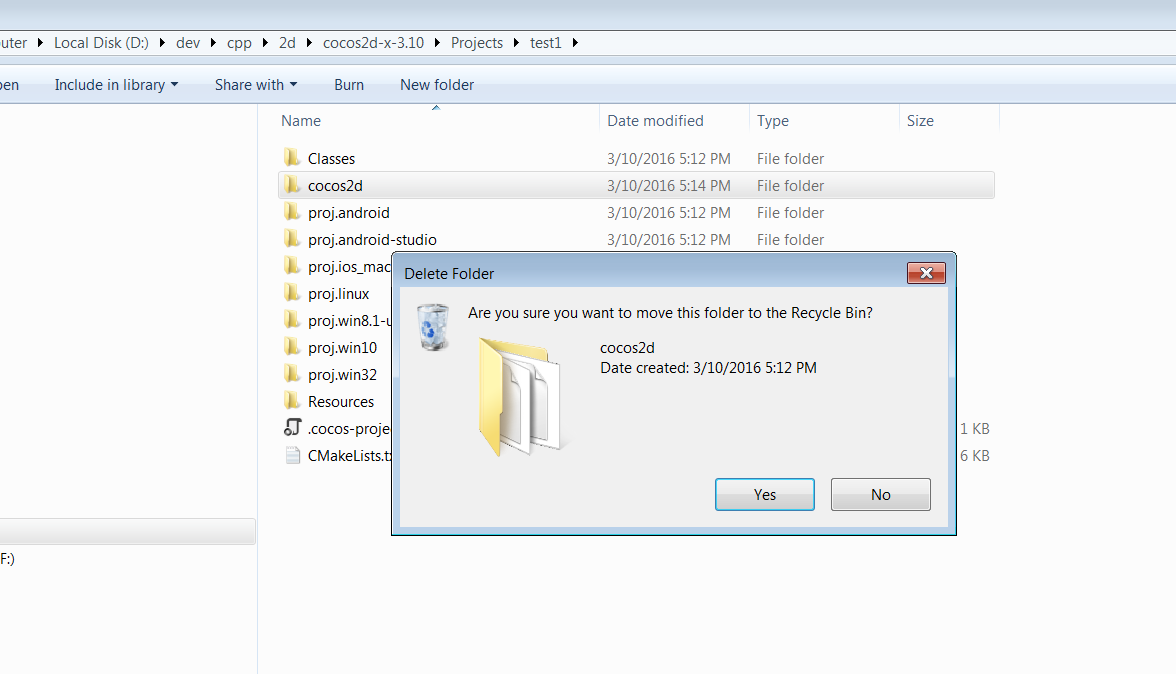
From :
4.60 GB (4,940,689,408 bytes) TO 82.4 MB (86,466,560 bytes). !!
This is problem which bean around few years now and caused low disk space. and long compilation time.
Also the windows prebuild option in cocos doesn't work for me .
The simple principle here is that we will compile the cocos2d-x Libraries once.
And this will be Our central repository of lib's and dll's .
And our game EXE will compile and run localy in the project directory.
For simplicity im doing it only for DEBUG version .
- First we need to build the Coccos2d-x libereris , they need to created in some central place
So my defualt project is of course the cocos2d-win32.sln which compiles also the cpp-tests
so compile the Engine .
d:\dev\cpp\2d\cocos2d-x-3.10\build\cocos2d-win32.sln - When done , create the game project i call it test1 and i will create it in Projects directory
which is created in the Cocos2d-x root directory :
d:\dev\cpp\2d\cocos2d-x-3.10\Projects\test1
Using the cocos console command :
D:\dev\cpp\2d\cocos2d-x-3.10\Projects>cocos new -l cpp test1 - First thing is delete the test1 cocos2d huge directory .

- Then open the visual studio test1.vcxproj.user and test1.vcxproj
in your favorite text editor
which Located in :
d:\dev\cpp\2d\cocos2d-x-3.10\Projects\test1\proj.win32\
- In test1.vcxproj.user we going to change the tags :
<LocalDebuggerEnvironment> </LocalDebuggerEnvironment>
so it will look like this :
<LocalDebuggerEnvironment>PATH=..\..\..\..\cocos2d-x-3.10\build\Debug.win32\</LocalDebuggerEnvironment>
what this means ?
the PATH is aimed to the Debug output of the :
d:\dev\cpp\2d\cocos2d-x-3.10\build\cocos2d-win32.sln
project form section 1.
The full test1.vcxproj.user look like this :
<?xml version="1.0" encoding="utf-8"?> <Project ToolsVersion="4.0" xmlns="http://schemas.microsoft.com/developer/msbuild/2003"> <PropertyGroup Condition="'$(Configuration)|$(Platform)'=='Debug|Win32'"> <LocalDebuggerWorkingDirectory>$(ProjectDir)..\Resources</LocalDebuggerWorkingDirectory> <DebuggerFlavor>WindowsLocalDebugger</DebuggerFlavor> <LocalDebuggerEnvironment>PATH=..\..\..\..\cocos2d-x-3.10\build\Debug.win32\</LocalDebuggerEnvironment> </PropertyGroup> <PropertyGroup Condition="'$(Configuration)|$(Platform)'=='Release|Win32'"> <LocalDebuggerWorkingDirectory>$(ProjectDir)..\Resources</LocalDebuggerWorkingDirectory> <DebuggerFlavor>WindowsLocalDebugger</DebuggerFlavor> </PropertyGroup> </Project> - In test1.vcxproj more stuff needs to be changes:
They all pointing to the main cocos2d-x engine :
Line 41: pointing to : "..\..\..\..\cocos2d-x-3.10\cocos\2d\cocos2dx.props"
Line 42: pointing to : "..\..\..\..\cocos2d-x-3.10\cocos\2d\cocos2d_headers.props"
Line 47: pointing to : "..\..\..\..\cocos2d-x-3.10\cocos\2d\cocos2dx.props"
Line 48: pointing to : "..\..\..\..\cocos2d-x-3.10\cocos\2d\cocos2d_headers.props"
Line 48: pointing to : "libcocos2d.lib;librecast.lib;libbullet.lib;"
Line 89: pointing to : "..\..\..\..\cocos2d-x-3.10\build\Debug.win32\"
Line 89: pointing to : "..\..\..\..\cocos2d-x-3.10\cocos\2d\cocos2d_headers.props"
The full test1.vcxproj look like this :
  1
  2
  3
  4
  5
  6
  7
  8
  9
 10
 11
 12
 13
 14
 15
 16
 17
 18
 19
 20
 21
 22
 23
 24
 25
 26
 27
 28
 29
 30
 31
 32
 33
 34
 35
 36
 37
 38
 39
 40
 41
 42
 43
 44
 45
 46
 47
 48
 49
 50
 51
 52
 53
 54
 55
 56
 57
 58
 59
 60
 61
 62
 63
 64
 65
 66
 67
 68
 69
 70
 71
 72
 73
 74
 75
 76
 77
 78
 79
 80
 81
 82
 83
 84
 85
 86
 87
 88
 89
 90
 91
 92
 93
 94
 95
 96
 97
 98
 99
100
101
102
103
104
105
106
107
108
109
110
111
112
113
114
115
116
117
118
119
120
121
122
123
124
125
126
127
128
129
130
131
132
133
134
135
136
137
138
139
140
141
142
143
144
145
146
147
148
149
150
151
152
153
154
155
156
157
158
159
160
161
162
<?xml version="1.0" encoding="utf-8"?> <Project DefaultTargets="Build" ToolsVersion="4.0" xmlns="http://schemas.microsoft.com/developer/msbuild/2003"> <ItemGroup Label="ProjectConfigurations"> <ProjectConfiguration Include="Debug|Win32"> <Configuration>Debug</Configuration> <Platform>Win32</Platform> </ProjectConfiguration> <ProjectConfiguration Include="Release|Win32"> <Configuration>Release</Configuration> <Platform>Win32</Platform> </ProjectConfiguration> </ItemGroup> <PropertyGroup Label="Globals"> <ProjectGuid>{76A39BB2-9B84-4C65-98A5-654D86B86F2A}</ProjectGuid> <RootNamespace>test_win32</RootNamespace> <Keyword>Win32Proj</Keyword> </PropertyGroup> <Import Project="$(VCTargetsPath)\Microsoft.Cpp.Default.props" /> <PropertyGroup Condition="'$(Configuration)|$(Platform)'=='Release|Win32'" Label="Configuration"> <ConfigurationType>Application</ConfigurationType> <CharacterSet>Unicode</CharacterSet> <WholeProgramOptimization>true</WholeProgramOptimization> <PlatformToolset Condition="'$(VisualStudioVersion)' == '12.0'">v120</PlatformToolset> <PlatformToolset Condition="'$(VisualStudioVersion)' == '12.0' and exists('$(MSBuildProgramFiles32)\Microsoft SDKs\Windows\v7.1A')">v120_xp</PlatformToolset> <PlatformToolset Condition="'$(VisualStudioVersion)' == '14.0'">v140</PlatformToolset> <PlatformToolset Condition="'$(VisualStudioVersion)' == '14.0' and exists('$(MSBuildProgramFiles32)\Microsoft SDKs\Windows\v7.1A')">v140_xp</PlatformToolset> </PropertyGroup> <PropertyGroup Condition="'$(Configuration)|$(Platform)'=='Debug|Win32'" Label="Configuration"> <ConfigurationType>Application</ConfigurationType> <CharacterSet>Unicode</CharacterSet> <PlatformToolset Condition="'$(VisualStudioVersion)' == '12.0'">v120</PlatformToolset> <PlatformToolset Condition="'$(VisualStudioVersion)' == '12.0' and exists('$(MSBuildProgramFiles32)\Microsoft SDKs\Windows\v7.1A')">v120_xp</PlatformToolset> <PlatformToolset Condition="'$(VisualStudioVersion)' == '14.0'">v140</PlatformToolset> <PlatformToolset Condition="'$(VisualStudioVersion)' == '14.0' and exists('$(MSBuildProgramFiles32)\Microsoft SDKs\Windows\v7.1A')">v140_xp</PlatformToolset> </PropertyGroup> <Import Project="$(VCTargetsPath)\Microsoft.Cpp.props" /> <ImportGroup Label="ExtensionSettings"> </ImportGroup> <ImportGroup Condition="'$(Configuration)|$(Platform)'=='Release|Win32'" Label="PropertySheets"> <Import Project="$(UserRootDir)\Microsoft.Cpp.$(Platform).user.props" Condition="exists('$(UserRootDir)\Microsoft.Cpp.$(Platform).user.props')" Label="LocalAppDataPlatform" /> <Import Project="..\..\..\..\cocos2d-x-3.10\cocos\2d\cocos2dx.props" /> <Import Project="..\..\..\..\cocos2d-x-3.10\cocos\2d\cocos2d_headers.props" /> </ImportGroup> <ImportGroup Condition="'$(Configuration)|$(Platform)'=='Debug|Win32'" Label="PropertySheets"> <Import Project="$(UserRootDir)\Microsoft.Cpp.$(Platform).user.props" Condition="exists('$(UserRootDir)\Microsoft.Cpp.$(Platform).user.props')" Label="LocalAppDataPlatform" /> <Import Project="..\..\..\..\cocos2d-x-3.10\cocos\2d\cocos2dx.props" /> <Import Project="..\..\..\..\cocos2d-x-3.10\cocos\2d\cocos2d_headers.props" /> </ImportGroup> <PropertyGroup Label="UserMacros" /> <PropertyGroup> <_ProjectFileVersion>12.0.21005.1</_ProjectFileVersion> <OutDir Condition="'$(Configuration)|$(Platform)'=='Debug|Win32'">$(SolutionDir)$(Configuration).win32\</OutDir> <IntDir Condition="'$(Configuration)|$(Platform)'=='Debug|Win32'">$(Configuration).win32\</IntDir> <LinkIncremental Condition="'$(Configuration)|$(Platform)'=='Debug|Win32'">true</LinkIncremental> <OutDir Condition="'$(Configuration)|$(Platform)'=='Release|Win32'">$(SolutionDir)$(Configuration).win32\</OutDir> <IntDir Condition="'$(Configuration)|$(Platform)'=='Release|Win32'">$(Configuration).win32\</IntDir> <LinkIncremental Condition="'$(Configuration)|$(Platform)'=='Release|Win32'">false</LinkIncremental> <CodeAnalysisRuleSet Condition="'$(Configuration)|$(Platform)'=='Debug|Win32'">AllRules.ruleset</CodeAnalysisRuleSet> <CodeAnalysisRules Condition="'$(Configuration)|$(Platform)'=='Debug|Win32'" /> <CodeAnalysisRuleAssemblies Condition="'$(Configuration)|$(Platform)'=='Debug|Win32'" /> <CodeAnalysisRuleSet Condition="'$(Configuration)|$(Platform)'=='Release|Win32'">AllRules.ruleset</CodeAnalysisRuleSet> <CodeAnalysisRules Condition="'$(Configuration)|$(Platform)'=='Release|Win32'" /> <CodeAnalysisRuleAssemblies Condition="'$(Configuration)|$(Platform)'=='Release|Win32'" /> </PropertyGroup> <PropertyGroup Condition="'$(Configuration)|$(Platform)'=='Debug|Win32'"> <LibraryPath>$(MSBuildProgramFiles32)\Microsoft SDKs\Windows\v7.1A\lib;$(LibraryPath)</LibraryPath> </PropertyGroup> <PropertyGroup Condition="'$(Configuration)|$(Platform)'=='Release|Win32'"> <LibraryPath>$(MSBuildProgramFiles32)\Microsoft SDKs\Windows\v7.1A\lib;$(LibraryPath)</LibraryPath> </PropertyGroup> <ItemDefinitionGroup Condition="'$(Configuration)|$(Platform)'=='Debug|Win32'"> <ClCompile> <Optimization>Disabled</Optimization> <AdditionalIncludeDirectories>$(EngineRoot)cocos\audio\include;$(EngineRoot)external;$(EngineRoot)external\chipmunk\include\chipmunk;$(EngineRoot)extensions;..\Classes;..;%(AdditionalIncludeDirectories);$(_COCOS_HEADER_WIN32_BEGIN);$(_COCOS_HEADER_WIN32_END)</AdditionalIncludeDirectories> <PreprocessorDefinitions>WIN32;_DEBUG;_WINDOWS;_USE_MATH_DEFINES;GL_GLEXT_PROTOTYPES;CC_ENABLE_CHIPMUNK_INTEGRATION=1;COCOS2D_DEBUG=1;_CRT_SECURE_NO_WARNINGS;_SCL_SECURE_NO_WARNINGS;%(PreprocessorDefinitions)</PreprocessorDefinitions> <MinimalRebuild>false</MinimalRebuild> <BasicRuntimeChecks>EnableFastChecks</BasicRuntimeChecks> <RuntimeLibrary>MultiThreadedDebugDLL</RuntimeLibrary> <PrecompiledHeader> </PrecompiledHeader> <WarningLevel>Level3</WarningLevel> <DebugInformationFormat>EditAndContinue</DebugInformationFormat> <DisableSpecificWarnings>4267;4251;4244;%(DisableSpecificWarnings)</DisableSpecificWarnings> <MultiProcessorCompilation>true</MultiProcessorCompilation> </ClCompile> <Link> <AdditionalDependencies>libcocos2d.lib;librecast.lib;libbullet.lib;%(AdditionalDependencies);$(_COCOS_LIB_WIN32_BEGIN);$(_COCOS_LIB_WIN32_END)</AdditionalDependencies> <OutputFile>$(OutDir)$(ProjectName).exe</OutputFile> <AdditionalLibraryDirectories>..\..\..\..\cocos2d-x-3.10\build\Debug.win32\;%(AdditionalLibraryDirectories);$(_COCOS_LIB_PATH_WIN32_BEGIN);$(_COCOS_LIB_PATH_WIN32_END)</AdditionalLibraryDirectories> <GenerateDebugInformation>true</GenerateDebugInformation> <SubSystem>Windows</SubSystem> <TargetMachine>MachineX86</TargetMachine> </Link> <PostBuildEvent> <Command> </Command> </PostBuildEvent> <PreLinkEvent> <Command> </Command> </PreLinkEvent> </ItemDefinitionGroup> <ItemDefinitionGroup> <CustomBuildStep> <Command>if not exist "$(OutDir)" mkdir "$(OutDir)" xcopy "$(ProjectDir)..\Resources" "$(OutDir)" /D /E /I /F /Y </Command> <Outputs>$(TargetName).cab</Outputs> <Inputs>$(TargetFileName)</Inputs> </CustomBuildStep> </ItemDefinitionGroup> <ItemDefinitionGroup Condition="'$(Configuration)|$(Platform)'=='Release|Win32'"> <ClCompile> <Optimization>MaxSpeed</Optimization> <IntrinsicFunctions>true</IntrinsicFunctions> <AdditionalIncludeDirectories>$(EngineRoot)cocos\audio\include;$(EngineRoot)external;$(EngineRoot)external\chipmunk\include\chipmunk;$(EngineRoot)extensions;..\Classes;..;%(AdditionalIncludeDirectories);$(_COCOS_HEADER_WIN32_BEGIN);$(_COCOS_HEADER_WIN32_END)</AdditionalIncludeDirectories> <PreprocessorDefinitions>WIN32;NDEBUG;_WINDOWS;_USE_MATH_DEFINES;GL_GLEXT_PROTOTYPES;CC_ENABLE_CHIPMUNK_INTEGRATION=1;_CRT_SECURE_NO_WARNINGS;_SCL_SECURE_NO_WARNINGS;%(PreprocessorDefinitions)</PreprocessorDefinitions> <RuntimeLibrary>MultiThreadedDLL</RuntimeLibrary> <FunctionLevelLinking>true</FunctionLevelLinking> <PrecompiledHeader> </PrecompiledHeader> <WarningLevel>Level3</WarningLevel> <DebugInformationFormat>ProgramDatabase</DebugInformationFormat> <DisableSpecificWarnings>4267;4251;4244;%(DisableSpecificWarnings)</DisableSpecificWarnings> <MultiProcessorCompilation>true</MultiProcessorCompilation> </ClCompile> <Link> <AdditionalDependencies>libcurl_imp.lib;websockets.lib;%(AdditionalDependencies);$(_COCOS_LIB_WIN32_BEGIN);$(_COCOS_LIB_WIN32_END)</AdditionalDependencies> <OutputFile>$(OutDir)$(ProjectName).exe</OutputFile> <AdditionalLibraryDirectories>..\..\..\..\cocos2d-x-3.10\build\Debug.win32\;%(AdditionalLibraryDirectories);$(_COCOS_LIB_PATH_WIN32_BEGIN);$(_COCOS_LIB_PATH_WIN32_END)</AdditionalLibraryDirectories> <GenerateDebugInformation>true</GenerateDebugInformation> <SubSystem>Windows</SubSystem> <OptimizeReferences>true</OptimizeReferences> <EnableCOMDATFolding>true</EnableCOMDATFolding> <TargetMachine>MachineX86</TargetMachine> </Link> <PostBuildEvent> <Command> </Command> </PostBuildEvent> <PreLinkEvent> <Command> </Command> </PreLinkEvent> </ItemDefinitionGroup> <ItemGroup> <ClCompile Include="..\Classes\AppDelegate.cpp" /> <ClCompile Include="..\Classes\HelloWorldScene.cpp" /> <ClCompile Include="main.cpp" /> </ItemGroup> <ItemGroup> <ClInclude Include="..\Classes\AppDelegate.h" /> <ClInclude Include="..\Classes\HelloWorldScene.h" /> <ClInclude Include="main.h" /> </ItemGroup> <ItemGroup> <ResourceCompile Include="game.rc" /> </ItemGroup> <Import Project="$(VCTargetsPath)\Microsoft.Cpp.targets" /> <ImportGroup Label="ExtensionTargets"> </ImportGroup> </Project> - Now we are ready to load the test1.sln to Visual Studio c++ in my case 2013
Once loaded , delete all other projects except our test1 .
- Compile the project and hit F5 to run it and walla !

The project running !
Size on disk : 82.4 MB (86,466,560 bytes).
//TODO
1 .Now all is left to do is to automate this process to python script .
2. Cross platform.